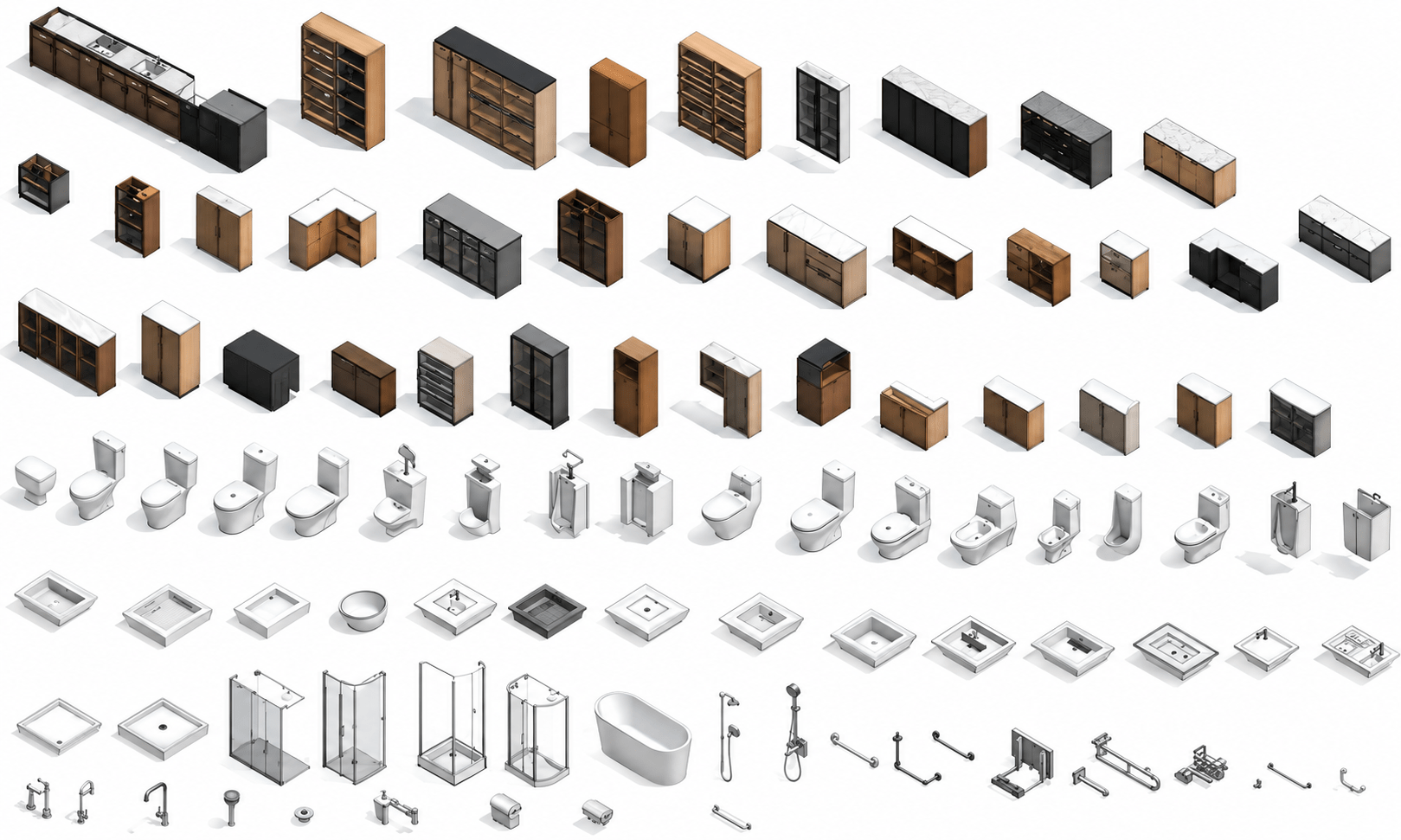
Why Revit Models Become Slow — And Which Elements Are Usually Responsible
Posted on : Sep 23, 2026
Revit is designed to make architectural and BIM workflows more coordinated, visual, and data-driven. However, many architecture, engineering, and construction teams face the same challenge as projects grow: the Revit model becomes slow.
Files take longer to open. Views lag when users zoom, pan, or orbit. Synchronising with central interrupts production. Sheets take too long to load, and even routine tasks such as updating dimensions, adding tags, or opening schedules begin to feel frustratingly slow.
A slow Revit model is not just a technical issue. It affects design productivity, BIM coordination, drawing accuracy, project timelines, and staff morale. When architects, BIM coordinators, and drafters spend too much time waiting for software, the entire project loses momentum.
The good news is that most Revit performance problems are preventable. Slow models are rarely caused by only one bad setting. More often, they result from several performance-heavy elements building up over time: overly detailed Revit families, unnecessary geometry, poorly managed linked models, imported CAD files, too many views, large images, bloated schedules, and inefficient worksharing practices.
This blog explains why Revit models become slow, which elements are usually responsible, how firms can optimise model performance, and how Outsourcing CAD Works can help create faster, cleaner, and more reliable BIM workflows.

Why Revit Model Performance Matters
Revit is much more than a drawing tool. A project file can contain geometry, parameters, materials, schedules, sheets, views, linked files, images, worksets, phases, design options, annotations, and shared BIM data.
Every one of these elements adds information that Revit must load, calculate, display, update, save, and synchronise. As models grow, the combined effect can slow daily work.
A slow Revit model can cause:
- Longer file opening and saving times.
- Delays when synchronising with central models.
- Laggy 3D navigation and view regeneration.
- Slow PDF exports and printing.
- Longer sheet-loading times.
- Delays when placing dimensions, tags, or annotations.
- More difficult coordination reviews.
- Increased frustration and reduced productivity.
Autodesk recommends minimising unnecessary geometry, model elements, and views. For very large projects, it also recommends splitting information into logical linked models instead of keeping everything inside one overloaded file.help.autodesk
A healthy Revit model helps teams spend more time designing, coordinating, and issuing accurate documents instead of waiting for software to respond.
1. Overly Detailed Revit Families
Detailed Revit families are one of the most common causes of poor model performance.
A family may look excellent in a close-up render, but it may contain far more geometry than the project needs. Downloaded manufacturer families, furniture, lighting fixtures, plumbing components, mechanical equipment, and custom content can include dense meshes, imported CAD, large images, nested objects, complex formulas, unnecessary voids, and fine details that do not add value to drawings or coordination.
For example, a chair family may include every bolt, seam, screw, internal frame component, and decorative detail. A mechanical unit may contain internal equipment parts, vents, labels, small fixtures, and visual elements that are invisible in most project views.
One heavy family may not slow the model noticeably. But when that family is placed 100, 300, or 1,000 times, performance can drop quickly.
Autodesk identifies overly complex families as a potential cause of slower publishing and recommends simplifying family geometry by removing unnecessary features such as bolts, screws, small drillings, chamfers, and other fine details.
How to optimise Revit families
- Match family detail to the project stage and drawing scale.
- Use symbolic 2D lines for plan and elevation views where possible.
- Remove invisible or unnecessary geometry.
- Avoid imported CAD, mesh, or large-image content inside families unless it is essential.
- Use Coarse, Medium, and Fine detail settings strategically.
- Limit unnecessary nested families.
- Avoid overly complex formulas and constraints.
- Create lightweight versions of frequently repeated objects.
- Test every new family in a separate sandbox model before adding it to a live project.
A high-quality Revit family should be accurate, lightweight, parametric, schedulable, and easy to maintain.
2. Excessive Geometry and Over-Modeling
Another common reason Revit models become slow is excessive geometry. Teams may model more detail than is needed for the current project stage.
Common examples include:
- Complex façade systems.
- Highly detailed railings and balustrades.
- Fully modeled furniture internals.
- Dense landscaping and planting objects.
- Decorative architectural elements.
- Modeled screws, bolts, and hardware.
- High-detail ceiling systems in early design models.
- Fabrication-level details added to concept or planning models.
The issue is not that detailed modeling is always wrong. The issue is using high-detail content before it is required.
A planning model does not need fabrication-level hardware. An early coordination model may need overall dimensions, clearances, and connection points, but it does not need every internal component of a mechanical unit.
The solution is to define the right Level of Development and Level of Information for every project stage.
Practical strategies for reducing geometry
- Model only what is required for the current deliverable.
- Use simplified forms for repeated objects.
- Use 2D detail components instead of modeling small details in 3D.
- Avoid unnecessary in-place families.
- Use lightweight parametric alternatives for repeated complex elements.
- Regularly review performance-heavy categories such as furniture, railings, curtain walls, planting, and equipment.
- Separate specialist or fabrication-level content into linked models where appropriate.
Autodesk recommends reducing unnecessary model elements and dividing large projects into logical linked files when one model becomes too large or complex.
3. Imported CAD Files and Exploded DWGs
Imported CAD files are another major cause of Revit performance issues.
A DWG may appear simple on screen, but it can contain thousands of layers, blocks, hatch patterns, line types, xrefs, construction lines, text styles, and hidden objects. When imported into Revit, that data becomes part of the project file and can add significant weight.
The biggest risk is exploding a CAD file inside Revit. Exploding turns one CAD import into hundreds or thousands of individual Revit elements. This can dramatically increase file complexity and reduce performance.
Autodesk warns that exploding imported geometry can create many additional elements and negatively affect model performance.
Better CAD management practices
- Link CAD files rather than importing them whenever possible.
- Clean DWG files in AutoCAD before bringing them into Revit.
- Remove unused layers, blocks, hatches, xrefs, and construction lines.
- Use Current View Only for temporary 2D CAD references.
- Avoid unnecessary 3D CAD links.
- Do not explode imported DWGs in a production Revit model.
- Remove or unload CAD links when they are no longer needed.
Autodesk also advises using linked or imported files sparingly, unloading unnecessary links, and minimising AutoCAD-specific linework, hatch patterns, and unnecessary data.
4. Too Many Linked Models
Linked models are essential for BIM coordination, but poor link management can slow a Revit model significantly.
Architecture, structure, MEP, civil, landscape, façade, and specialist consultant models may all need to be linked into one project. The problem is not linking itself. The problem is loading too many heavy, outdated, nested, or duplicate links at the same time.
If several large consultant models are loaded into every heavy 3D view, Revit must process a huge amount of information whenever users open views, navigate in 3D, synchronise, or publish.
Link-management strategies
- Link only files required for the current project phase.
- Remove duplicate or obsolete consultant models.
- Use clear naming and version-control rules.
- Place large links on dedicated worksets.
- Allow users to close nonessential worksets when opening models.
- Avoid circular links and unnecessary nested links.
- Use lightweight coordination models where possible.
- Divide major projects by building, zone, discipline, or package.
Autodesk recommends placing linked files on separate worksets, opening only necessary worksets, avoiding unnecessary nested or circular links, and temporarily unloading links that are not required in a particular view or working session.help.
5. Too Many Views, Sheets, and Schedules
Views may not look like performance-heavy elements, but they can accumulate over time. Project teams often create temporary 3D views, working sections, duplicate plans, coordination views, presentation sheets, print views, old schedules, and abandoned design options.
If these are never removed, the Project Browser becomes cluttered and the model becomes harder to manage.
Heavy 3D views are especially demanding when they display many categories, shadows, realistic materials, high levels of detail, and several linked models.
Autodesk recommends removing obsolete views and deactivating unnecessary views, sheets, and publish sets when dealing with slow cloud publishing.
View-cleanup strategies
- Delete obsolete, duplicate, or temporary views regularly.
- Use naming conventions such as WIP, TEMP, or COORD.
- Remove unused sheets and schedules.
- Use view templates to control visibility consistently.
- Create a lightweight drafting view as the default opening view.
- Limit published view sets to current deliverables.
- Use crop regions, filters, and detail levels to reduce visible complexity.
Autodesk notes that using a simple drafting view with basic project information as the starting view can improve opening performance compared with opening a heavy 3D view first.
6. Large Images, PDFs, and Raster Content
High-resolution images, scanned drawings, logos, PDFs, and presentation graphics can quietly make a Revit model larger and slower.
These items may not be geometry, but Revit still has to load and display them. Large images can affect opening, printing, PDF export, sheet loading, and view performance.
This is common when project teams keep scanned surveys, high-resolution site images, presentation boards, or manufacturer PDFs inside the live Revit model long after they are needed.
Better raster-content practices
- Use compressed, appropriately sized image files.
- Avoid embedding large presentation graphics in production models.
- Remove old images and PDFs.
- Keep temporary presentation material in separate files when possible.
- Link rather than embed reference content where appropriate.
Autodesk recommends using compact image content and reviewing models for unnecessary images, PDFs, links, and external references when addressing model-opening performance.
7. Large Datasets, Parameters, and Complex Schedules
Revit models are valuable because they contain data. Parameters, schedules, classifications, room data, asset information, materials, and keynotes all support BIM workflows.
However, data can become a performance problem when teams add too many parameters, use duplicate fields, create large multi-category schedules, build overly complex formulas, or retain information that no longer supports a project need.
The aim is not to remove valuable BIM data. It is to make information purposeful, consistent, and easy to manage.
Better BIM data practices
- Add parameters only when they support a schedule, tag, coordination requirement, or handover need.
- Use shared parameters consistently.
- Avoid duplicate parameter names.
- Simplify overly complex schedules and formulas.
- Remove obsolete schedules and key schedules.
- Use clear naming standards for parameters and classifications.
- Review asset-data requirements before adding information to every family.
Good data management improves both performance and reliability. It makes schedules easier to use and reduces manual data-cleaning work before issue or handover.
8. Warnings, Constraints, Groups, and In-Place Families
Warnings may not always directly slow Revit, but a large warning list is usually a sign of poor model health.
Duplicate marks, overlapping elements, disconnected references, constraints, room separation problems, and other warnings can create confusion and increase troubleshooting time.
In-place families can also create issues if used too often. They are useful for unique project-specific components, but they should not become the default approach for repeatable content. Reusable loadable families are generally easier to optimise, standardise, schedule, and manage.
Groups and design options need similar discipline. Overly constrained groups, complex nested content, and abandoned options can make models harder to edit and maintain.
Model-health strategies
- Review warnings regularly at project milestones.
- Resolve priority warnings before major issue dates.
- Avoid unnecessary locked constraints.
- Use in-place families only for genuinely unique items.
- Replace repeated in-place components with loadable families.
- Remove abandoned design options.
- Audit and compact the model using a planned maintenance process.
9. Worksharing and Workset Practices
In a workshared Revit project, performance also depends on how users open and manage worksets.
If every user loads every workset, every link, and every heavy project area by default, the model can become much slower than necessary.
Worksets should support collaboration and loading control. They should not be treated as replacements for CAD layers.
Better workset strategy
- Use dedicated worksets for large linked models.
- Place heavy reference content on worksets that can be closed.
- Open only worksets required for the current task.
- Keep workset structures simple and logical.
- Establish clear ownership and borrowing practices.
- Audit central-model procedures and synchronisation habits.
For large projects, closing nonessential worksets can improve opening time and reduce the amount of information each user must load.
A Practical Revit Model Optimization Plan
When a Revit model is already slow, avoid random fixes. Use a structured optimisation plan.
Step 1: Identify where the slowdown happens
Record whether the delay occurs during:
- Opening.
- Saving.
- Synchronising.
- Publishing.
- Printing.
- Loading views.
- Navigating in 3D.
- Editing a specific category.
Different symptoms may point to different causes.
Step 2: Review model content
Check:
- File size.
- Imported CAD files.
- Linked model sizes.
- Images and PDFs.
- Family file sizes.
- View and sheet counts.
- Schedule counts.
- Warning counts.
- Worksets.
- Design options.
Step 3: Find performance-heavy families
Review manufacturer content, furniture, equipment, repeated objects, and imported elements. Look for dense geometry, nested components, CAD imports, or unnecessary detail.
Step 4: Audit links and imports
Use Manage Links to remove, unload, or simplify outdated links. Review CAD imports and remove content that no longer supports active project work.
Step 5: Clean views and publish sets
Delete obsolete views, sheets, schedules, and publish sets. Create lightweight working and coordination views for daily tasks.
Step 6: Purge, audit, and compact carefully
Use Purge Unused to remove content that is genuinely no longer required. Audit and compact models as part of a controlled maintenance process. Always back up the model before major cleanup.
Step 7: Improve standards for future projects
Update family standards, CAD import rules, link-management procedures, view templates, parameter controls, and QA checklists so the same performance problems do not return.
How Outsourcing CAD Works Helps With Revit Optimization
Outsourcing CAD Works helps architecture, engineering, and construction firms improve Revit performance without requiring busy internal teams to stop active project delivery work.
A dedicated external BIM team can audit model health, identify performance-heavy content, clean families and links, remove unnecessary data, and establish efficient standards for future work.
Support can include:
- Revit model performance audits.
- Family review, cleanup, optimisation, and standardisation.
- Lightweight custom Revit family creation.
- CAD import cleanup and controlled CAD-to-Revit conversion.
- Linked-model and workset-management support.
- View, sheet, schedule, and Project Browser organisation.
- Model cleanup, Purge Unused support, and audit preparation.
- BIM data and parameter-organisation assistance.
- Revit documentation and coordination support.
- Office BIM standards, templates, and QA checklist development.
Outsourcing CAD Works positions CAD outsourcing as a way for AEC firms to delegate drafting, design, and documentation work to specialist teams, helping them scale project delivery and improve efficiency.outsourcingcadworks
Advantages of Outsourcing Revit Model Cleanup
- Specialist review: Experienced BIM professionals can identify issues internal teams may overlook during busy project periods.
- Less internal disruption: Architects and BIM managers can focus on client work, coordination, and active deadlines.
- Faster recovery: A dedicated team can clean families, links, views, and imported content systematically.
- Stronger standards: Firms can build reusable libraries, link protocols, and model-health processes.
- Flexible capacity: Use support for one problem model, a major project milestone, or an office-wide BIM cleanup programme.
- Improved productivity: Faster models help teams draft, coordinate, review, and issue documentation more efficiently.
The value is not simply a smaller file. It is a BIM workflow that supports reliable, profitable, and less frustrating project delivery.
Preventing Slow Revit Models in the Future
The best model-performance strategy is prevention. Firms should create clear rules that stop heavy, untested, or unnecessary content from entering live production models.
A preventive model-health checklist can include:
- Test and approve families before adding them to a central library.
- Establish file-size and geometry guidelines for Revit families.
- Simplify manufacturer content where possible.
- Link CAD rather than import it, and clean DWG files first.
- Never explode CAD imports without a controlled reason.
- Match geometry detail to project stage and deliverable need.
- Use a clear link and workset strategy.
- Delete obsolete views, sheets, schedules, and design options.
- Audit warnings and model health at key project milestones.
- Keep raster files compact and relevant.
- Control parameters, schedules, and data requirements.
- Train users to follow templates, libraries, and QA procedures.
These practices keep models healthier from the start and reduce the need for emergency cleanup close to important deadlines.
The Business Value of a Faster Revit Workflow
Revit model performance is not only an IT issue. It directly affects how a firm delivers projects.
Faster models allow designers to test ideas, BIM coordinators to review consultant information, drafters to update drawings, and managers to issue packages with less delay.
Healthy models can help firms:
- Improve staff productivity.
- Reduce frustration and wasted time.
- Maintain drawing accuracy under deadline pressure.
- Improve consultant coordination.
- Speed up issue packages and publishing.
- Reduce rework caused by poorly managed content.
- Create reusable BIM standards for future projects.
- Improve the overall client experience.
A disciplined approach to Revit performance gives a firm a competitive advantage. It creates more time for design, coordination, and decision-making—the work clients value most.
SEO Keywords
FAQs
1. Why does a Revit model become slow?
A Revit model becomes slow when it accumulates performance-heavy content such as detailed families, excessive geometry, imported CAD files, large linked models, unnecessary views, high-resolution images, complex schedules, large datasets, warnings, and inefficient worksets.
2. Which Revit families slow down a model the most?
Families with dense geometry, imported CAD or meshes, many nested components, large images, excessive formulas, complex voids, or unnecessary fine detail are most likely to affect performance, especially when they are placed repeatedly.
3. Do imported CAD files make Revit slow?
Yes. Imported DWGs can contain many layers, hatches, blocks, lines, and hidden objects. They can increase file complexity, and exploding a CAD import can create a very large number of Revit elements.
4. How do linked models affect Revit performance?
Linked models add geometry and data that Revit must load and display. Large, nested, outdated, or unnecessary links can slow opening, view navigation, synchronisation, and publishing. Worksets and unloading unused links can help.
5. Will Purge Unused improve Revit model performance?
Purge Unused can remove families, materials, views, and other content that is genuinely unused. It can reduce file size and support performance, but it should be part of a controlled cleanup process rather than a replacement for good modeling practices.
6. How can I make Revit views load faster?
Delete obsolete views, use lightweight working views, reduce visible categories, control detail level, use crop regions and view templates, avoid unnecessary shadows and realistic graphics in working views, and limit publish sets to required deliverables.
7. How does Outsourcing CAD Works help with slow Revit models?
Outsourcing CAD Works can audit model health, optimise families, clean CAD imports, manage links and worksets, organise views and data, support model cleanup, and develop BIM standards that improve performance over time.
Call to Action
Stop Letting a Slow Revit Model Slow Down Your Entire Team
Long model opens, lagging views, heavy families, imported CAD, oversized links, and difficult synchronisation should not become the cost of doing BIM. Outsourcing CAD Works can help your firm identify the real causes of Revit performance issues and create a cleaner, faster, more reliable workflow.
Our CAD and BIM specialists can audit your model, optimise performance-heavy content, clean unnecessary files and views, improve family standards, and support efficient Revit production practices.
Ready to transform a slow, frustrating Revit model into a faster BIM delivery system?
Visit www.outsourcingcadworks.com to request a Revit model health consultation and discuss the right optimisation support for your project.
Tags
Revit model, Revit model performance optimization, Revit model cleanup, Revit family optimization, Revit performance issues, imported CAD files, Revit linked models, Revit file size reduction, BIM model optimization, Revit workset management, Revit model health, Outsourcing CAD Works
Related Blogs
Art assets in different styles like 2D art for interactive applications, Games, and UI. We are having more than 15 years of experience